Free personal time tracking spreadsheet: a Google Sheets template with a live timer

František Hlinka · Solo developer of Nanominute
· 5 min read
A spreadsheet is the best free way to start tracking your personal time: no subscription, and the data is yours. Below is a free Google Sheets template with a simple live timer that you can copy in one click, and a tutorial for building the same thing yourself.
Make a copy of the free template (Google asks you to sign in to copy it). You can also look at it first.
How does the template work?
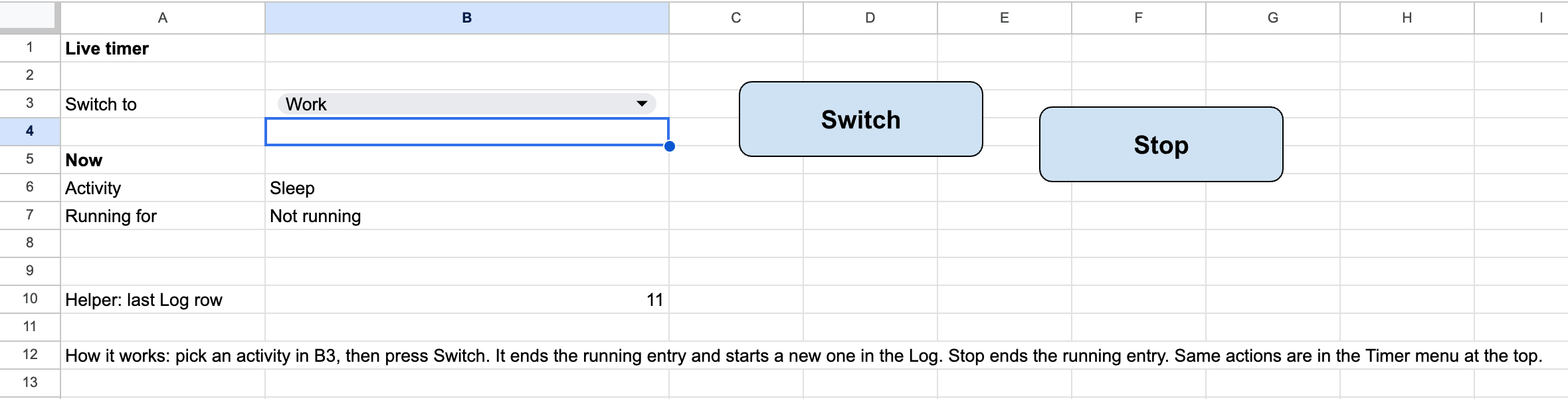
The template has five tabs: Start here, Timer, Log, Activities and Summary. You pick an activity on the Timer tab and press Switch. The sheet ends the running entry with the current time and starts a new row in the Log. Stop ends the running entry. The Summary tab adds everything up for a week.
If you would rather not use a script, the Log works by hand too: one row per activity, with the time typed in. Press Ctrl+Shift+; (Cmd+Shift+; on a Mac) to insert the current time, and Ctrl+; (Cmd+;) for the date.
What do you need to know before using the timer buttons?
The buttons run a small Google Apps Script that is copied along with the sheet. Three things to know:
- Authorize it once. The first time you press Switch, Google asks you to authorize the script, and may show an “unverified app” warning because I haven’t published it. The script only edits this spreadsheet, and you can read all of it under Extensions, Apps Script (it is also below).
- Desktop browser only. The Google Sheets mobile app cannot run scripts, so on a phone you log rows by hand.
- There is a fallback. The same actions are in the Timer menu at the top of the sheet.
How do you build the template yourself?
Four steps for the core, about ten minutes:
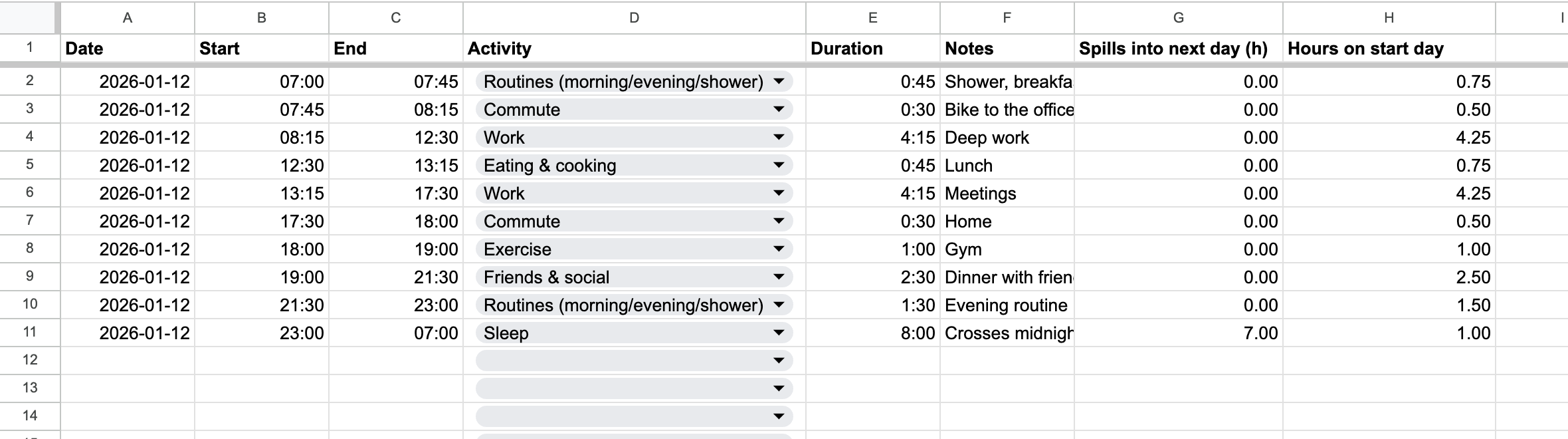
- Create a Log tab with the columns Date, Start, End, Activity, Duration and Notes. Format Start and End as time (HH:mm) and Duration as
[h]:mm. - Add the duration formula in E2 and fill it down:
=IF(OR(B2="",C2=""),"",MOD(C2-B2,1)). TheMODwraps negative results, so an entry from 23:00 to 07:00 correctly gives 8 hours. - Create an Activities tab with your category list, then add a dropdown to the Activity column (Data, Data validation, Dropdown from a range).
- Create a Summary tab. Put the week’s first day in B1 and use this formula for hours per activity:
=SUMIFS(Log!$E$2:$E$1000,Log!$D$2:$D$1000,A4,Log!$A$2:$A$1000,">="&$B$1,Log!$A$2:$A$1000,"<="&$B$1+6)*24. Insert a bar chart on top.
My template adds two helper columns to the Log so that entries which cross midnight, like a night of sleep, are split between the two days in the weekly totals. Copy the template to get them.

The timer script
For the live timer, open Extensions, Apps Script and paste this in. Add a rounded drawing for each button (Insert, Drawing), then assign switchActivity and stopTimer to them. The script expects the dropdown in cell B3 of a tab named Timer:
function onOpen() {
  SpreadsheetApp.getUi().createMenu('Timer')
    .addItem('Switch to selected activity', 'switchActivity')
    .addItem('Stop timer', 'stopTimer')
    .addToUi();
}

function lastLogRow_(log) {
  const v = log.getRange('B2:B1000').getValues();
  for (let i = v.length - 1; i >= 0; i--) if (v[i][0] !== '') return i + 2;
  return 1;
}

function timeFraction_(d, tz) {
  const h = +Utilities.formatDate(d, tz, 'H');
  const m = +Utilities.formatDate(d, tz, 'm');
  const s = +Utilities.formatDate(d, tz, 's');
  return (h * 3600 + m * 60 + s) / 86400;
}

function switchActivity() {
  const ss = SpreadsheetApp.getActive();
  const log = ss.getSheetByName('Log');
  const activity = ss.getSheetByName('Timer').getRange('B3').getValue();
  if (!activity) { ss.toast('Pick an activity in the "Switch to" cell first.'); return; }
  const tz = ss.getSpreadsheetTimeZone(), now = new Date();
  const t = timeFraction_(now, tz), last = lastLogRow_(log);
  if (last > 1 && log.getRange(last, 3).getValue() === '') log.getRange(last, 3).setValue(t);
  const row = last + 1;
  log.getRange(row, 1).setValue(Utilities.formatDate(now, tz, 'yyyy-MM-dd'));
  log.getRange(row, 2).setValue(t);
  log.getRange(row, 4).setValue(activity);
  ss.toast('Now: ' + activity);
}

function stopTimer() {
  const ss = SpreadsheetApp.getActive();
  const log = ss.getSheetByName('Log');
  const last = lastLogRow_(log);
  if (last > 1 && log.getRange(last, 3).getValue() === '') {
    log.getRange(last, 3).setValue(timeFraction_(new Date(), ss.getSpreadsheetTimeZone()));
    ss.toast('Stopped.');
  } else {
    ss.toast('No timer is running.');
  }
}
Which categories should you pick?
Pick about twelve broad categories and split only the ones you want to learn more about. This is the starter list in the template, each with its own colour in the Activities tab and the chart:
| Category | What goes in it |
|---|---|
| Sleep | Nights and naps |
| Work | Paid work, only the productive time |
| Commute | Any travel from A to B |
| Routines | Morning, evening, showering, getting ready |
| Eating and cooking | Meals and food prep |
| Exercise | Gym, sport, swimming |
| Friends and social | Seeing people, events |
| Relationship and family | Time with your partner or family |
| Hobbies | The things you do for fun |
| Chilling and entertainment | Phone, TV, doing nothing |
| Learning | Study, courses, reading to learn |
| Errands and chores | Shopping, cleaning, laundry |
If you add or rename an activity, set its colour in the Activities tab and in the chart by hand, because the chart colours do not update themselves. For how detailed to get, and what to leave out, read how to do a personal time audit. The short version: log one primary activity at a time and do not aim for perfect.
What are the limits of a spreadsheet?
A spreadsheet works, but you maintain it. These are the downsides I ran into:
- Setup and upkeep. Scripts, authorization, chart colours and the weekly start date are all yours to look after.
- Desktop only for the timer. On a phone you type times, so you tend to log in batches, and batches are less accurate.
- No quick switching. Switching means picking an activity from a dropdown and pressing a button, every time.
- No goals or streaks. The template adds up your hours, but nothing keeps you on track.
When should you move beyond a spreadsheet?
Move on when logging feels like a chore or you want to track every day for months. A timer app removes the setup: you tap when you switch. I compare the alternatives, including Toggl Track, in the tools I tried for tracking personal time.
I built Nanominute for that reason, so I’m biased. It is a timer for your whole day: one tap to switch, one continuous timeline, widgets, offline use and goals. There are no ads, and I never sell your time tracking data. You can try it free for 2 weeks. If a spreadsheet is enough for you, use the template, and I’ll be glad it helped.
Try it yourself
Track your personal time with Nanominute
A time tracker for your whole life, not just work. Start a timer, switch with a tap, and see where your days go. Try it free for 2 weeks on iPhone, Android, Mac, Windows and Linux.


Frequently asked questions
How do I track my personal time in Google Sheets?
Make one row per activity with Date, Start, End, Activity and Duration columns. Calculate duration with =MOD(End-Start,1), which also works across midnight, then summarise hours per activity with SUMIFS. My free template also has Switch and Stop buttons that fill in the times for you.
Can Google Sheets be used as a live time tracker?
Yes, with a small Google Apps Script. A button writes the current time as the end of the running entry and starts a new row. It needs a one-time authorization and works in a desktop browser, not in the Google Sheets mobile app.
How do I insert the current time in Google Sheets without a script?
Press Ctrl+Shift+; (Cmd+Shift+; on a Mac) to insert the current time, and Ctrl+; (Cmd+;) for the date. The values are static, so they do not change afterwards.
What categories should I use in a personal time log?
Start with about twelve broad ones: sleep, work, commute, routines, eating and cooking, exercise, friends and social, relationship or family, hobbies, chilling, learning, errands and chores. Split one only if you want to learn more about it.